How to Create a Design for Sublimation
If you have ever tried sublimation printing only to end up with faded colors, blurry edges, or a design that simply refuses to transfer, you are not alone. The process of creating a design for sublimation looks deceptively simple, but small technical missteps can ruin an otherwise good idea. The good news is that once you understand the most common pitfalls, the whole workflow becomes straightforward and even enjoyable. Whether you are a small business owner printing custom mugs, a hobbyist making personalized apparel, or a designer expanding into physical products, getting the design stage right makes everything downstream easier.
This guide walks through the real mistakes people make when preparing artwork for sublimation, and shows you how to correct them using the right approach, including a focused Studio tutorial that ties the steps together. No fluff, no jargon overload, just practical corrections that will save you time, material, and frustration.
Why Sublimation Design Requires a Different Mindset
Many creators come from a background in digital design or standard inkjet printing, where what you see on screen is close to what comes out on paper. Sublimation flips that assumption. The inks are transparent, the colors shift during heat transfer, and the substrate itself affects the final appearance. A design for sublimation is not just a pretty picture, it is a carefully prepared file that accounts for color space, resolution, and mirror orientation. Treating it like a regular print job is the first mistake most people make.
The real value of learning how to create a design for sublimation is that you gain control over color accuracy and sharpness. Instead of hoping the printer works it out, you prepare the file correctly from the start. This is especially important for anyone selling sublimated products, because returns and unhappy customers almost always trace back to a poorly prepared design file.
The Mistake Most Designers Make First: Wrong Color Space
It seems like a technical detail that can wait, but color space is the single most overlooked setting. Sublimation printers and heat presses work in CMYK, not RGB. If you design in RGB and convert later, the color shift can be dramatic. Bright neon greens turn muddy brown, vivid blues go gray, and skin tones go orange. Worse, you might not see the problem until after pressing.
How to avoid this: Set your design software to CMYK from the very first new document. Even better, use a CMYK profile that matches your specific sublimation printer and ink combination. This is not a minor tweak, it is the foundation of predictable color. In the Studio tutorial included in this article, you will see exactly where to change the color mode before you place your first shape or image. Do not skip this step.
If you are buying pre-made sublimation designs, check that they are in CMYK as well. Many marketplaces sell RGB files that look great on screen but print poorly. Knowing how to verify color space before downloading saves you from wasted blanks and ink.
Resolution: The Silent Quality Killer
A common misunderstanding is that sublimation can magically produce sharp prints from low-resolution images. In reality, the transfer process does not improve blur, it faithfully reproduces it. A pixelated design on screen becomes a pixelated design on a mug or shirt. The resolution requirement for sublimation is typically 300 DPI at the final print size, not 72 DPI you might use for web graphics.
Realistic example: A designer uses a logo sourced from a website at 150 DPI thinking it will be fine for a small coaster. After pressing, the edges have visible jaggedness. The client is unhappy and the product cannot be resold. The fix would have been to recreate the logo as a vector or find a higher-resolution source file before starting the design.
Better approach: Always check the DPI of any raster image you import. If the image is too small, consider converting it to a vector or using a dedicated upscaling tool designed for print. Avoid relying on generic enlargement in your design software, it typically softens the detail. In the Studio tutorial you will see how to inspect image properties and resize without losing quality.
Mirroring: The Most Embarrassing Mistake
Forgetting to mirror or flip the design horizontally is a classic error that costs time and material. It seems basic, yet experienced creators still do it when working quickly. The reason is simple: sublimation transfers the design in reverse. If your design has text, it will come out backwards unless you mirror it before printing.
Why this matters: A mirrored mistake means the entire blank is wasted. Unlike paper, you cannot flip a sublimated mug or shirt after pressing. The cost adds up fast, especially for small businesses running multiple orders. It also damages your reputation if a customer receives a backwards logo.
Practical correction: Make mirroring a non-negotiable step in your workflow. In your design software, use the flip horizontal command, but do it before you merge layers or add final effects. Some printers have a mirror setting in the driver, but relying on that alone is risky. Confirm visually that the design looks reversed before hitting print. In the Studio tutorial, you will learn a simple checklist that includes mirror checking as a dedicated step, not an afterthought.
Overlooking the White Background Trap
Sublimation ink is translucent. It does not print white. When you transfer a design onto a white or light-colored substrate, any white areas in your design will become transparent, showing the underlying fabric or coating. This is expected and works beautifully. The problem comes when you place a design with a white background onto a dark or colored substrate. The white background will not appear, and the ink colors will mix with the substrate color, producing muddy or invisible results.
Common misunderstanding: Beginners assume that leaving a white rectangle behind their text acts as a white base. It does not. Sublimation cannot print white, so that rectangle becomes clear and the substrate color shows through.
Better approach: If you need white in your design, you must use a white sublimation paper or a specialized printer that supports white ink, which is less common and more expensive. For most projects, design around the absence of white. Use lighter substrates for bright colors, and avoid placing light-colored text over dark areas unless you plan for contrast through other methods. The Studio tutorial covers how to preview your design against different background colors so you catch this issue before printing.
The Overcomplicated Design File
Another mistake is creating a design that is too complex for the sublimation process to reproduce cleanly. Extremely fine lines, tiny text, and intricate gradients can blur or lose detail during transfer. The heat and pressure cause slight ink spread, and very fine elements can fill in or become unreadable.
Realistic example: A creator designs a detailed mandala pattern with lines less than 1 point thick for a ceramic tile. After pressing, the fine lines have merged into solid patches, and the pattern looks nothing like the original. The design was beautiful on screen but impractical for sublimation.
Practical advice: Test your design at the intended print size. If you cannot read your text or see your lines clearly when printed on plain paper, they will not work in sublimation. Keep body text above 10 points and avoid line weights thinner than 1.5 points for highly detailed areas. For small products like coasters or keychains, simplify the design so it remains legible and crisp after transfer. The Studio tutorial includes a "preview at actual size" feature that helps you evaluate this before committing to print.
Ignoring Substrate Color and Finish
The color and finish of your blank object dramatically affect the final result. A glossy ceramic mug will produce more vibrant colors than a matte polyester shirt, because the glossy surface reflects light and enhances saturation. Similarly, a dark-colored substrate will subdue your ink colors unless you intentionally account for it.
What many overlook: They design on a white screen, print onto white paper, but transfer onto a grey or black item. The resulting colors appear darker, cooler, or completely different. This is not a printer error, it is a design oversight.
How to avoid: Before you start creating a design for sublimation, know exactly what blank you are printing on. Adjust your color palette accordingly. If printing on a light grey mug, you may want to increase saturation by 10–20 percent in your design. If printing on a dark fabric, consider whether sublimation is even the right method, or if you need a different technique like DTF or screen printing. The Studio tutorial demonstrates a substrate color simulation that lets you see how your design will look on different blanks before you waste a single sheet of paper.
Underestimating Profile and Calibration
Many creators skip the step of calibrating their monitor and setting up a proper ICC profile for their printer. This is not an advanced luxury, it is basic quality control. Without it, the colors you see on screen will not match the printed result. This mismatch leads to constant tweaking and guessing, which wastes time and materials.
Better approach: Invest a small amount of time in monitor calibration using a hardware tool or software-based adjustment. Then install and select the correct ICC profile for your sublimation paper and ink combination. Most quality sublimation paper brands provide profiles for common printers. Use them. The difference is not subtle. In the Studio tutorial, you will see where to load and assign these profiles so that what you design is what you get after the press.
Practical Studio Tutorial Integration
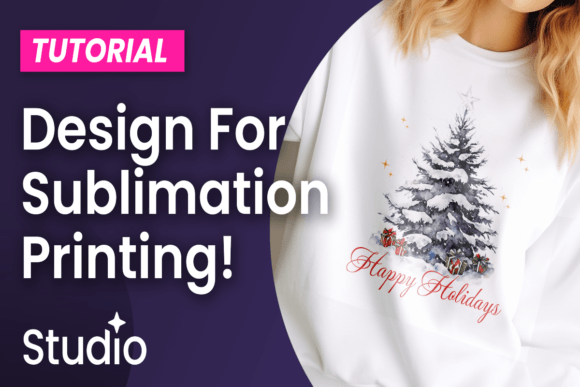
To bring all of these corrections together, the accompanying Studio tutorial walks you through a complete workflow: starting a new document in CMYK, importing a vector graphic, checking DPI, mirroring the design, simulating substrate color, and exporting as a print-ready file. Each step corresponds directly to one of the mistakes above. By following the tutorial, you not only create a design for sublimation that works, you also build a repeatable process that prevents those same errors from recurring.
The tutorial is designed to be short enough to complete in a single session, but thorough enough to serve as a reference you can revisit anytime. Whether you are designing for mugs, apparel, coasters, or tiles, the principles remain the same. Once you internalize these corrections, you will find that sublimation design becomes predictable and satisfying, not a gamble.
What to Check Before You Start Designing
Before you open any software, run through a quick mental checklist. Confirm your color space is set to CMYK. Gather images or graphics at 300 DPI or higher. Decide on your substrate and note its color and finish. Make mirroring a hard rule, not an optional step. Preview your design at actual size to verify detail legibility. Load the correct ICC profile for your printer and paper. If you follow this checklist before each new project, you eliminate the vast majority of problems that ruin sublimation prints.
Creating a design for sublimation does not require a decade of print experience. It does require attention to a few technical details that many tutorials gloss over. By avoiding the common mistakes of wrong color space, low resolution, forgotten mirroring, white background assumptions, overcomplicated files, and mismatched substrates, you set yourself up for consistent success. The Studio tutorial is your practical shortcut to applying all of this advice in real time. Use it as a starting point, adapt it to your own style, and watch your sublimation results improve noticeably from your very next project.