How to Make a Custom Pattern in Studio: A Complete Guide to Repeat on Background
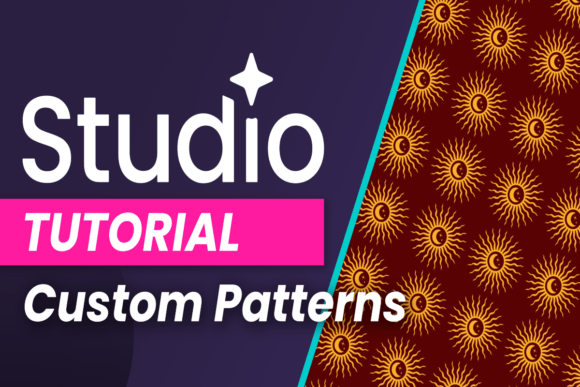
Patterns are everywhere. They appear on the clothes we wear, the wallpapers in our homes, the textures in digital art, and the branding materials businesses use every day. Creating a custom pattern from scratch used to feel like a complex process reserved for seasoned designers with expensive software. But with modern creative platforms like Studio, that has changed dramatically. Studio makes pattern creation intuitive, fast, and surprisingly fun. One feature in particular — Repeat on Background — has become a game-changer for anyone looking to build seamless, professional-quality patterns without guesswork or tedious manual alignment. In this transformative tutorial, we will explore exactly how to make a custom pattern in Studio, with a deep dive into the Repeat on Background feature and how it fits into the broader creative workflow.
What Does It Mean to Make a Custom Pattern?
Before jumping into the tools, it helps to understand what a custom pattern actually is. A pattern is simply a repeating design element — a motif, shape, illustration, or texture — that tiles across a surface in a predictable way. The magic lies in the seamlessness: when done well, the pattern repeats so smoothly that the viewer cannot tell where one tile ends and the next begins. This is the hallmark of professional pattern design.
Custom patterns allow creators to inject personality, consistency, and visual interest into their work. Whether you are designing fabric for a fashion line, building a background for a website, creating wrapping paper, or developing a brand identity, a well-crafted pattern can elevate the entire project. Studio empowers you to do this without needing a degree in graphic design. The platform is built for both beginners exploring their creativity and experienced designers who want efficiency without sacrificing quality.
Why Repeat on Background Matters
The Repeat on Background feature in Studio is not just another checkbox in a menu. It represents a fundamental shift in how pattern creation works. Traditionally, making a seamless pattern required careful manual placement, copying elements, aligning edges, and then checking your work repeatedly. One misaligned element would disrupt the entire repeat, forcing you to start over or spend frustrating minutes tweaking coordinates. Repeat on Background automates the most tedious part of that process. It lets you set a background or canvas area where your design repeats automatically, giving you a live preview of how the pattern will look when tiled.
The significance of this feature goes beyond convenience. It changes the creative process itself. Instead of assembling a pattern tile and hoping it works, you can design directly within the repeating context. You see the repetition happen in real time. This means you can make adjustments on the fly, experiment with spacing, and ensure visual harmony from the very first step. For anyone who has ever felt frustrated by pattern creation, this feature is nothing short of liberating.
Finding Repeat on Background in Studio's Toolbar
Studio is known for its clean, intuitive interface. The toolbar is designed to keep essential tools within easy reach without overwhelming you with options. To access the Repeat on Background feature, start by opening a new project or an existing design where you want to create a pattern. Look for the background settings section in the toolbar. In most versions of Studio, you will find a dedicated Repeat icon or a dropdown menu labeled Background. Clicking this reveals several options, including Repeat on Background. Depending on your workspace layout, it may appear under a Pattern submenu or within the Canvas settings.
If you are having trouble locating it, use the search bar in Studio's help menu or hover over icons until you see the tooltip that reads Repeat on Background. Once you find it, you can enable it with a single click. The interface will immediately update to show your design elements repeating across the background area. This live preview is your new best friend for pattern creation. You can adjust the scale, rotation, and spacing of your repeated elements directly from the toolbar, often with slider controls or numerical inputs that give you precise control.
Step-by-Step: How to Create a Custom Pattern with Repeat on Background
Let us walk through the process from start to finish. This step-by-step guide will help you create your first custom pattern using Repeat on Background in Studio. Each step builds on the previous one, so follow along even if you are completely new to the platform.
Step 1: Set Up Your Canvas and Background
Begin by opening Studio and creating a new document. Choose a canvas size that matches your intended output. If you are designing fabric, a square tile like 500x500 pixels is a good starting point. If you are working on a digital background, consider the aspect ratio of your target screen. Once your canvas is ready, navigate to the background settings in the toolbar and enable Repeat on Background. You will see the canvas area transform into a grid-like preview where any element you add will begin repeating automatically.
Step 2: Design Your Core Motif
Now comes the creative part. Using Studio's shape tools, drawing tools, or by importing your own graphics, create a single motif that will form the basis of your pattern. This could be a simple geometric shape, a floral element, a hand-drawn icon, or a typographic detail. Keep in mind that the motif does not need to be complex to be effective. Some of the most beautiful patterns are built from simple, well-spaced elements. Place your motif somewhere on the canvas. As soon as you add it, Repeat on Background will show you how it looks when tiled across the entire background.
Step 3: Adjust Spacing and Alignment
Look at the live preview carefully. Is the spacing between repeats pleasing? Do the elements feel too crowded or too far apart? Use the spacing controls in the toolbar to adjust the horizontal and vertical distance between repeats. Many patterns benefit from offsetting rows, creating a staggered effect that feels more organic. Studio's Repeat on Background often includes an offset toggle or slider that lets you shift alternate rows by a percentage or pixel value. Experiment with different offsets to see how they change the overall texture of the pattern.
Step 4: Add Variation and Layering
Once your base motif looks good in repeat, consider adding a second layer of elements. This could be a smaller accent shape that appears between the main motifs, a subtle texture overlay, or a background color that ties everything together. Because Repeat on Background gives you a live preview, you can see exactly how each new layer interacts with the existing repeat. This is where the feature truly shines — you can build complex, multi-layered patterns without ever losing sight of the overall composition. Use transparency, blending modes, and color adjustments to create depth and visual interest.
Step 5: Fine-Tune and Export
After you are satisfied with the pattern, take a moment to zoom in and inspect the edges where repeats meet. Even with automation, it is wise to double-check that no unintentional gaps or overlaps exist. Studio's Repeat on Background handles most of this automatically, but a quick visual check gives you peace of mind. When everything looks good, export your pattern. Studio allows you to export as a tile or as a full background image, depending on your needs. For most applications, exporting a seamless tile is the best choice, as it gives you maximum flexibility for use in other projects.
Practical Applications of Custom Patterns
Custom patterns are far more than a creative exercise. They have real, practical value across many fields. Businesses use branded patterns for packaging, social media graphics, and website backgrounds. Educators create patterned worksheets, classroom decorations, and visual aids that engage students. Artists and crafters use patterns for print-on-demand products, textile design, and digital art. Even in personal projects, a custom pattern can turn a simple notebook cover, phone wallpaper, or gift wrap into something uniquely yours.
The Repeat on Background feature makes these applications accessible to anyone. You do not need to understand mathematical tiling, complex software, or years of design theory. You just need an idea and the willingness to experiment. Studio handles the technical heavy lifting, freeing you to focus on creativity.
Common Misunderstandings About Pattern Creation
One of the most persistent myths about custom patterns is that they require perfect symmetry or mathematical precision. In reality, the best patterns often embrace asymmetry, organic spacing, and slight imperfections that give them character. Repeat on Background helps you achieve a consistent repeat without forcing your design into a rigid grid. Another misunderstanding is that seamless patterns must be made from a single tile that is saved and reused. While that is one approach, Studio's live repeat feature allows you to design directly in the repeating context, which often yields more natural results. Finally, some people assume that pattern creation is only for advanced users. Studio's interface, combined with the Repeat on Background tool, makes it genuinely beginner-friendly.
Tips for Getting the Most Out of Repeat on Background
To truly master this feature, keep a few best practices in mind. First, start simple. Experiment with one shape and one color before adding complexity. This helps you understand how spacing and offset affect the overall pattern. Second, use the live preview actively. Move elements around while the repeat is visible and watch how the pattern changes in real time. Third, think about scale. A motif that looks perfect at one size may feel too dominant or too tiny when repeated. Use the scale controls in the toolbar to find the sweet spot. Fourth, save multiple versions of your pattern as you experiment. Studio makes it easy to duplicate your project, so you can explore different directions without losing your original idea. Finally, do not be afraid to break the rules. Some of the most interesting patterns come from unexpected placements, overlapping elements, or unconventional color combinations.
The Bigger Picture: Patterns in Modern Life
In today's visually saturated world, patterns play a subtle but powerful role. They create familiarity, guide the eye, and convey emotion without using words. A calm, repeating geometric pattern can make a space feel organized and peaceful. A playful, hand-drawn pattern can inject warmth and personality into a brand. The ability to create your own patterns means you are not limited to what is available in stock libraries or pre-made collections. You can tailor every detail to your specific vision. Studio, with its Repeat on Background feature, puts that power directly into your hands. It democratizes pattern design, making it accessible to anyone with a creative spark and a willingness to learn.
Conclusion
Learning how to make a custom pattern in Studio is one of the most rewarding skills you can develop as a creator. The Repeat on Background feature eliminates the guesswork and frustration that once made pattern creation feel like a chore. Instead, it invites you to play, explore, and design with confidence. Whether you are a complete beginner or a seasoned designer looking for a more efficient workflow, this tool will transform the way you think about repeating elements. So open Studio, find that Repeat on Background button in the toolbar, and start creating. Your next seamless pattern is just a few clicks away.